Create your first guide
This page will show you how to create a simple guide with the GuideSail builder in under 1 minute.
Make sure you have already installed the GuideSail Builder using these steps
1. Navigate to your product page
We will be using the dashboard demo page (opens in a new tab).
Ensure you build the guide on a page which you can add Javascript to, otherwise you won't be able to see the guide in production.
2. Launch the GuideSail Builder
Launch the GuideSail builder on your page, you should see a URL matching the page.
Select "Create A New Guide +"
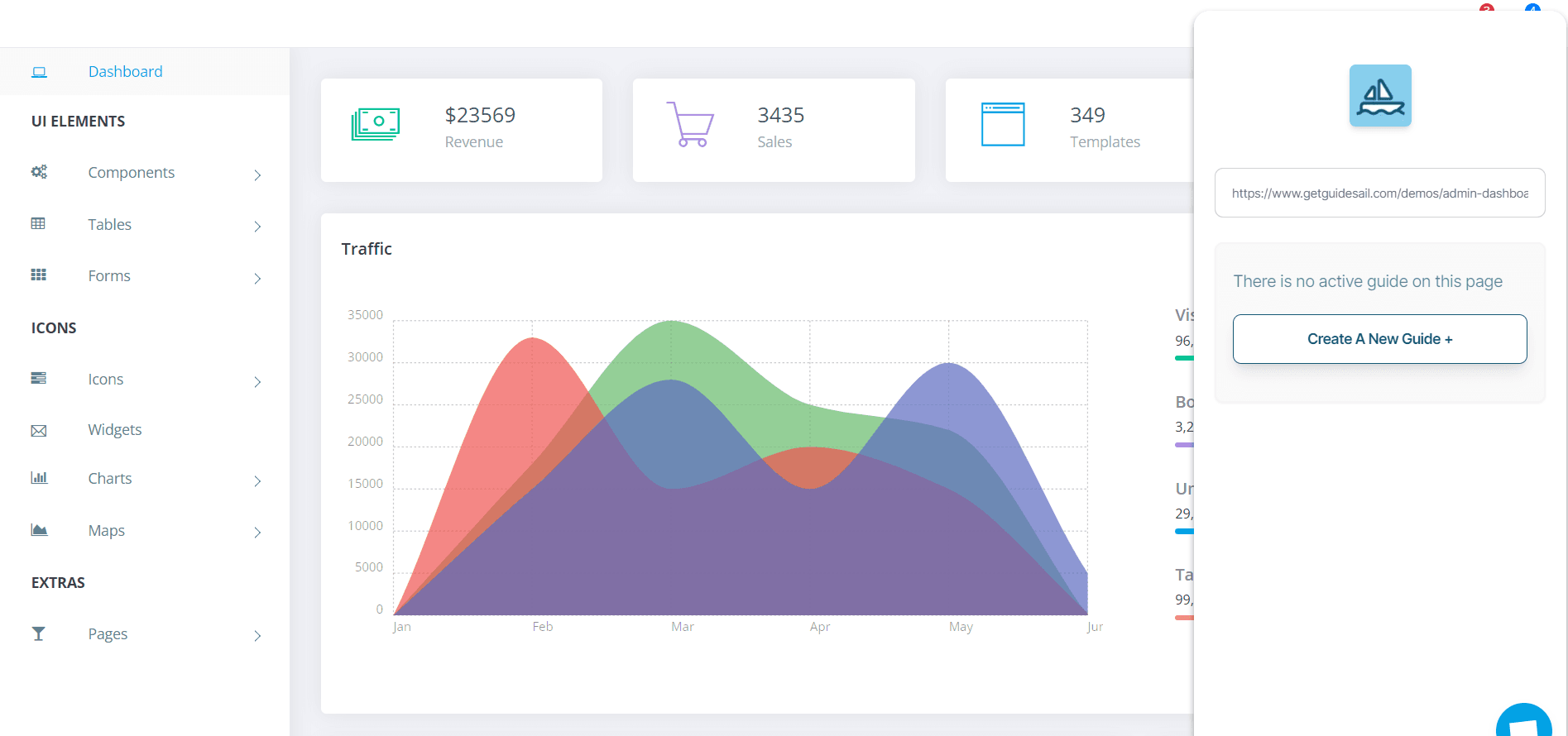
3. Build Guide
There are two aspects to creating your guide. First is the Configuration settings of the guide. Second is the actual steps which would be shown in your guide. Below is how to set up both of these aspects:
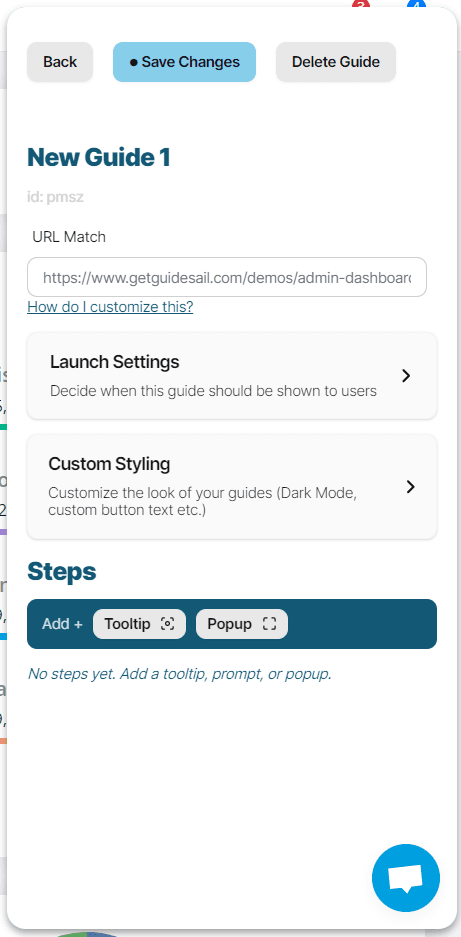
Guide Configuration Settings:
| Setting | Description |
|---|---|
| Title | Start by giving your guide a title |
| Launch Settings | Automatic Guides are launched when your user views this page (based on URL Match). If set to once only then this will only be shown once to each user. (e.g. You may want to show an onboarding guide only once.) Manual Guides are launched based on a function call. This method allows you to control when a guide is shown to a user (e.g. when they click a button on your page). |
| Custom Styling | Here you can control the text shown on the Next, Previous, and Done buttons of your guide. |
| URL Match | Automatic Guides are set based on the URL match when the user visits this page. Typically this should be left as is. But in advanced cases there is the option to use Custom URL Match Strings |
Guide Steps:
In this section you can add steps to your guide. Every guide must have at least one step. Every step must have a title.
| Step Type | Description |
|---|---|
| Tooltip | A small pop-up box that appears over an element. Useful for providing additional information on a specific part of the product. |
| Popup | A dialog box that appears in the center of the screen. Ideal for introduction steps, or general user messaging. |